
Power Query provides a set of tools and functions to transform your data. Here we will see how to insert a text or you can say substring into an existing text string at a specified position using Power Query in-built function that is Text.Insert.
This function returns the result of inserting text value into the existing text value at specified position.
Below is the syntax:
Text.Insert(text as nullable text, offset as number, newText as text) as nullable text
text: The original text string in which you want to insert the new text.
offset: The starting position in the original text where you want to insert the new text. The position is zero-based, meaning the first character is at position 0.
newText: The text string you want to insert into the original text.
Let’s look at an example, as you can see here we have a sample table named codes which contains a codes.

Let’s create a new column which contains new codes after inserting a text “-VAL-“ into an existing codes at position 3rd.
For this, we will create new column into table, go to add column then click on custom column as shown below.

Now write a below M code function to insert a text “-VAL-“ into an existing codes at 3rd position as shown below.
Text.Insert([Codes],3,"-VAL-")
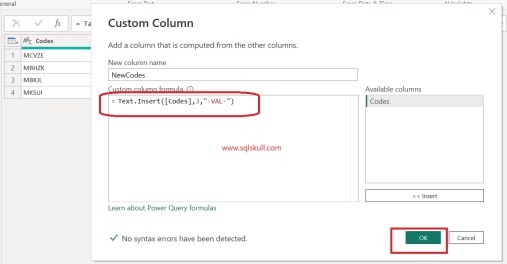
After that, click on OK button.
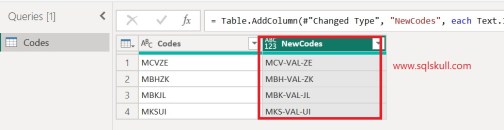
Now you can see, a new column named NewCodes is created in table and text “-VAL-“ is inserted to 3rd position in an existing codes.
Also Read..
